The short answer
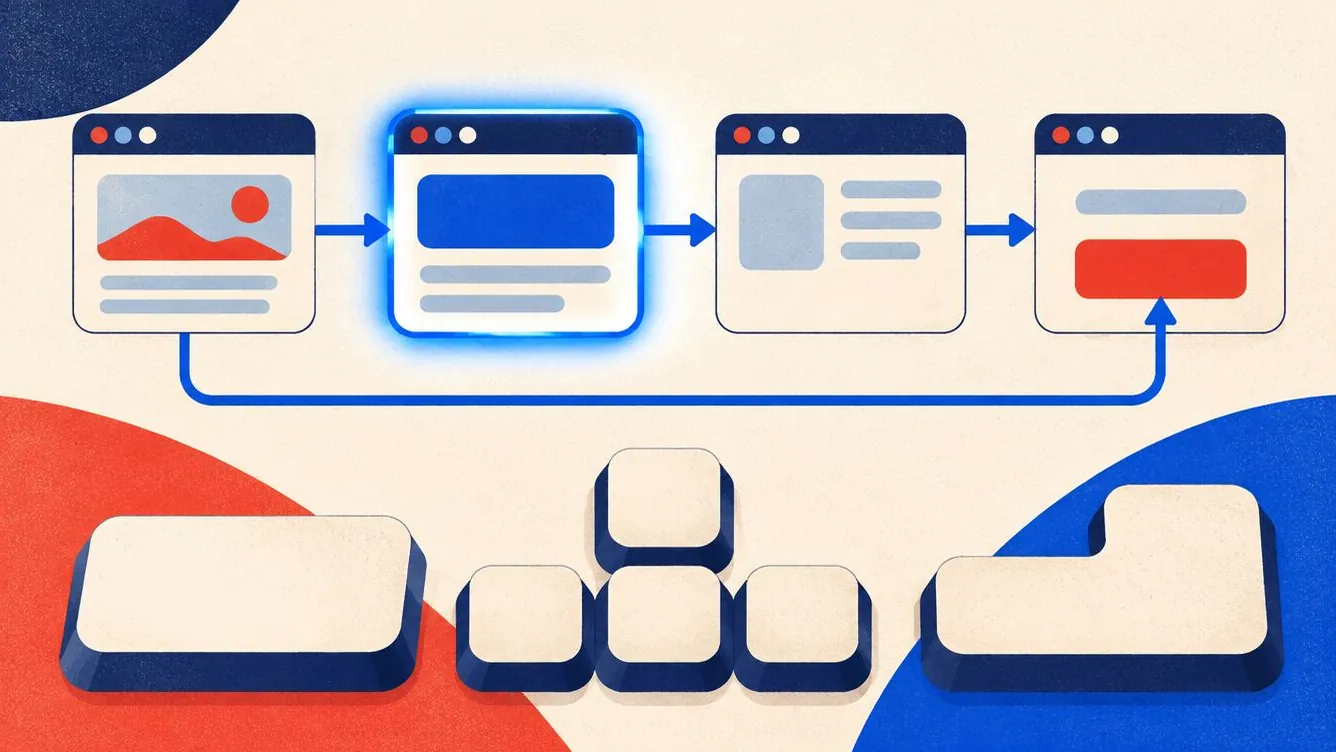
Put your mouse away and use Tab to move forward, Shift+Tab to move back, Enter to follow links and press buttons, Space for checkboxes and buttons, arrow keys inside menus and Escape to close pop-ups. You should always see where you are, reach everything clickable in a logical order, and never get stuck.
Key takeaways
- Many people navigate with a keyboard or a device that acts like one.
- You must always see a clear focus outline.
- The order should follow the page visually.
- Menus, pop-ups and sliders are where most traps hide.
- Add a "Skip to content" link so people do not tab through the menu every time.
Automated tools are great at finding missing labels and alt text, but only a person can tell if a site is actually usable without a mouse. People who are blind, have tremors or limited movement, or simply prefer the keyboard all depend on this. The test takes five minutes.
The keys you need
- Tab: next link, button or field
- Shift + Tab: previous
- Enter: follow a link, press a button, submit
- Space: press a button, tick a checkbox, scroll
- Arrow keys: radio buttons, menus, sliders, tabs
- Escape: close a menu or dialog
On a Mac with Safari, turn on “Press Tab to highlight each item on a webpage” in Safari settings, under Advanced, first.
The test, step by step
-
Start at the top of the page
Click in the address bar, then press Tab. The first thing you reach should ideally be a “Skip to main content” link.
-
Tab through everything
Press Tab repeatedly. Every link, button and field should get a visible outline, in an order that matches how the page reads.
-
Use every control
Open the menu with Enter, move inside it with the arrow keys or Tab, and close it with Escape. Tick checkboxes with Space. Submit a form with Enter.
-
Open and close pop-ups
Open a dialog or cookie banner. Focus should move into it, stay inside while open, and return to the button that opened it when you press Escape.
-
Look for traps
If you cannot Tab out of a video player, a map or a chat widget, that is a keyboard trap (WCAG 2.1.2) and a serious barrier.
-
Write down and fix
Note each problem with the page and element. Most fixes are small: add a focus style, use a real button instead of a div, or fix the order in the HTML.
The four most common problems and their fixes
No visible focus. Someone added outline: none to look tidy. Bring it back with a clear style such as :focus-visible { outline: 3px solid #1F4FD8; outline-offset: 2px; }.
Clickable divs. A <div onclick> cannot be reached with Tab. Use a real <button> for actions and <a href> for links. They work with the keyboard for free.
Strange order. Positive tabindex values (1, 2, 3) or CSS that moves things around visually can make focus jump. Remove positive tabindex and fix the order in the HTML.
Hidden focus. A sticky header or cookie banner covers the focused element. WCAG 2.2 added a rule for this (2.4.11, Focus Not Obscured). Add scroll padding: html { scroll-padding-top: 90px; }.
Make it a habit
Run this test whenever you launch a new template, menu or form. Accessible Nord flags the code patterns that usually cause keyboard problems, like clickable divs and positive tabindex, so you know where to look first. For the bigger picture, see how to run an accessibility audit in one afternoon.
Sources
- Understanding WCAG 2.2: Keyboard (2.1.1)
- Understanding WCAG 2.2: Focus Visible (2.4.7)
- Understanding WCAG 2.2: Focus Not Obscured (Minimum) (2.4.11)
- WebAIM: Keyboard accessibility
Last reviewed .
Frequently asked questions
Do I need a screen reader to test accessibility?
A keyboard test is the best first step and needs no extra software. Testing with a free screen reader like NVDA on Windows or VoiceOver on Mac and iPhone is a great next step.
What is a skip link?
A link at the very top of the page, often hidden until it gets focus, that jumps straight to the main content. It saves keyboard users from tabbing through the whole menu on every page.
Does the Accessible Nord widget help keyboard users?
It adds a strong focus outline, highlights links and offers a page structure menu, which help. But keyboard traps and clickable divs must be fixed in your code.
This guide is general information, not legal advice. For your specific obligations, check with a lawyer or your regulator.